
New ways to share: Trackable link, Instagram frames, a Reel, or a PDF
Publishing a story was always the easy part. Getting it in front of people meant copying a link and hoping for the best.
So we rebuilt the share page. It is one place where your published story becomes whatever you need it to be: a link you can measure, vertical frames for Instagram, an animated video, pages you can print, or an embed for another website. You make all of it from the story you already wrote. There is nothing to design again.
Open any published story and select Share.
Share a link, and measure the clicks
Section titled “Share a link, and measure the clicks”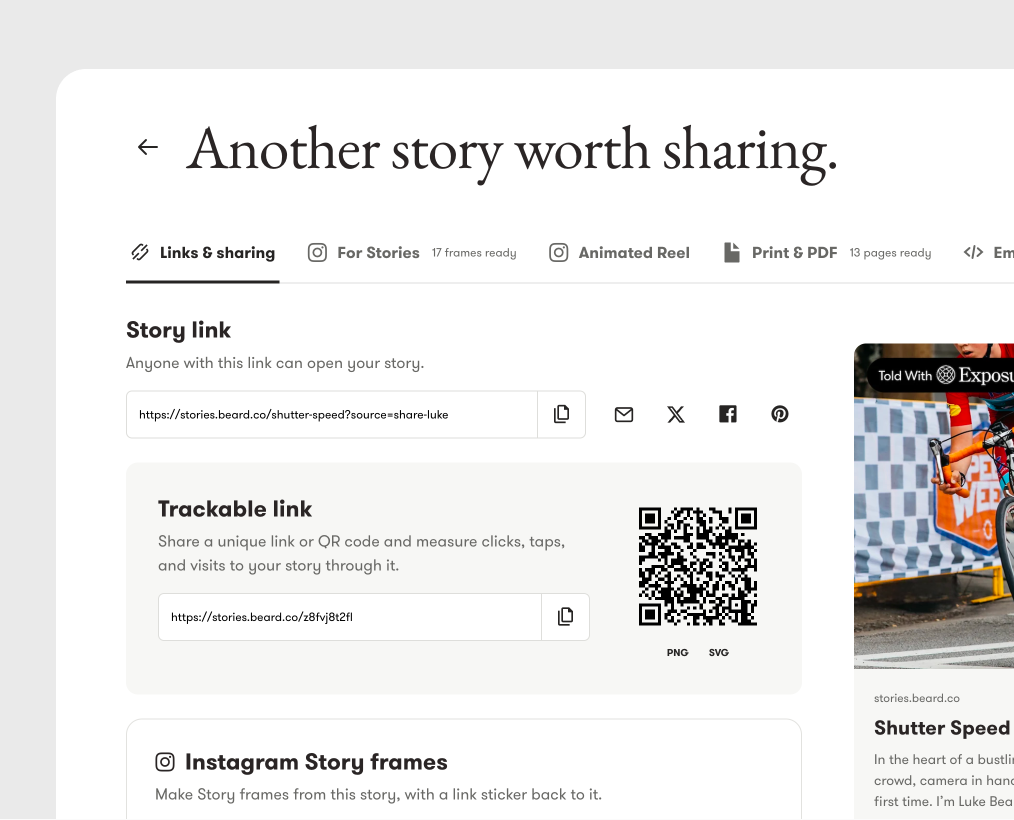
Your story link sits at the top, with buttons for email, X, Facebook and Pinterest. If your story has more than one language, you can copy the link for the language you are reading.
On Pro Plus and above, select Generate trackable link for a second link that counts every visit through it. Download its QR code as a PNG or an SVG for a poster, a business card or a print layout. Stats shows total clicks, daily counts, traffic sources and devices.
These are counts of clicks and taps, not of people. A trackable link does not tell you who opened your story.
You can also drag the share image to set its crop, so the picture that appears on social networks is the part you meant.
Instagram Story frames
Section titled “Instagram Story frames”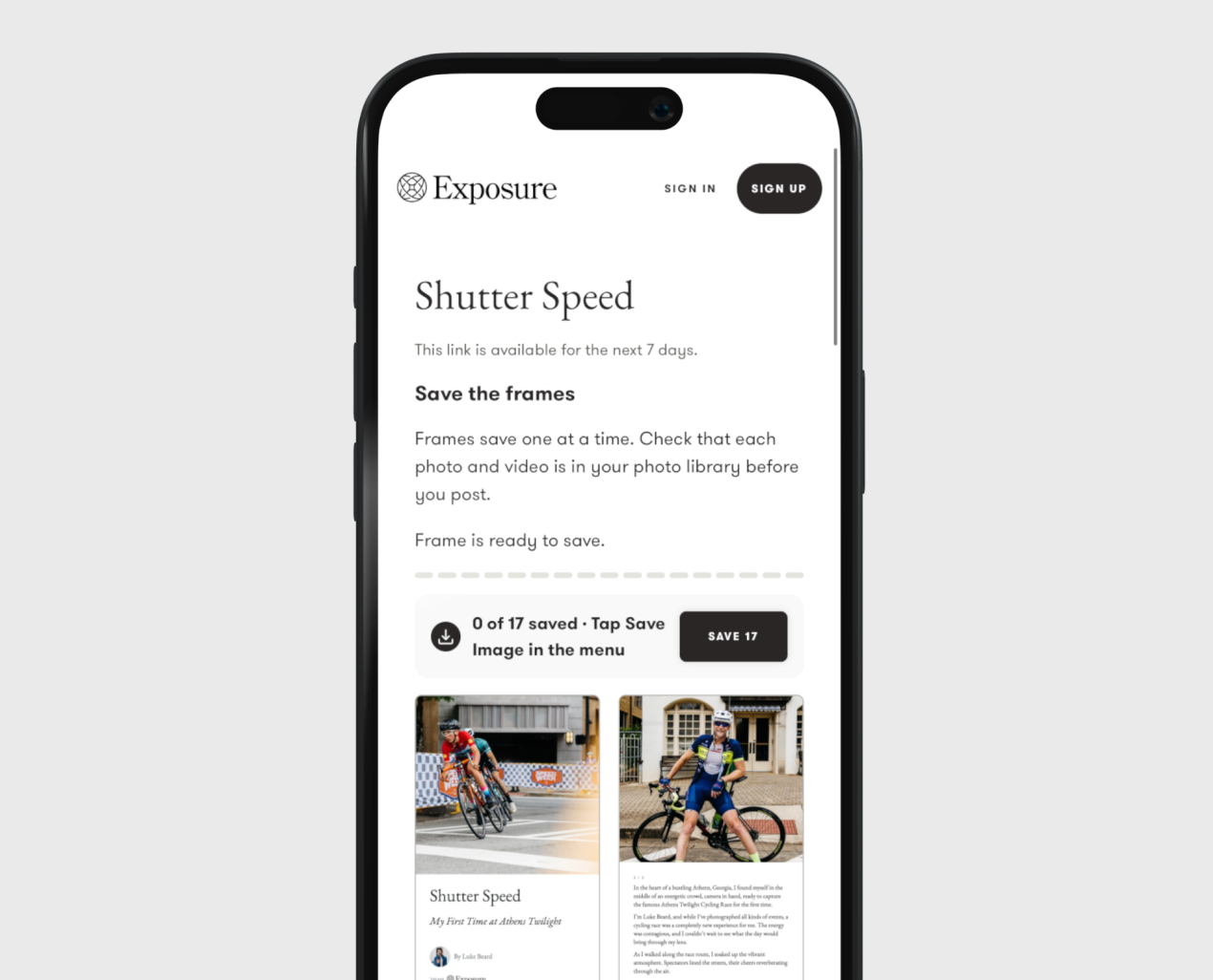
Select For Stories to turn your story into vertical frames. Pick from six photo layouts, open any frame to adjust its crop, and switch on Show Instagram Interface to check where Instagram’s own controls land before you post.
Download the set as a ZIP, or select Send to yourself or others. That gives you a link and a QR code, and emails the link to you. Open it on your phone and save the frames one at a time, last frame first, so they arrive in your photo library in the order you post them. The link works for seven days.
Animated Reel
Section titled “Animated Reel”Select Animated Reel to turn the same frames into a vertical MP4. Choose Slide, Frame, Fade or Zoom, set the page duration, entry, exit and stagger, and pick an easing curve. The looping example shows the motion before you commit to it.
Select Create Reel, and your story animates itself:
Download the MP4, or send it to your phone with the same seven-day link. Reels play without sound.
Print & PDF
Section titled “Print & PDF”Select Print & PDF for a page-based copy of your story. Choose A4, Letter or Legal, pick a photo layout, and check every page preview. Then select PDF to download the file, or Print to send it to a printer.
Your cover photo fills the first page, and each page after it keeps your site address, your photo groups and your text.
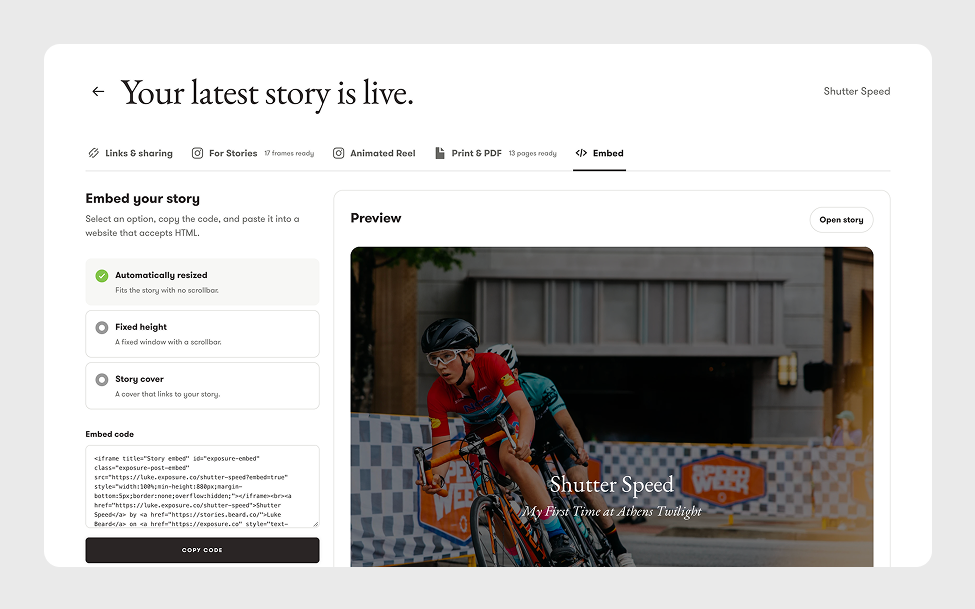
Select Embed to put the story on another website. Choose Automatically resized for a story that fits its space with no scrollbar, Fixed height for a set window, or Story cover for a compact card that links back to you. Check the preview, copy the code, and paste it in.
What you need
Section titled “What you need”Story links, the social buttons and the share image crop work on every plan.
Story frames, Animated Reel, Print & PDF and Embed are available with Pro and above. Trackable links and QR codes are available with Pro Plus and above.
These tools make files and links for you. They do not post to your accounts, so you always see the result before anyone else does.
Go and make something with a story you already published. As always, let us know what you think.