
Set up and manage two-factor authentication
Two-factor authentication is optional for member accounts. Enable it in Settings → Security & Signin.
Two-factor authentication adds a code check after your password. You get the code from an authenticator app. You can also use one unused recovery code.
Set up your authenticator
Section titled “Set up your authenticator”-
Sign in to the Exposure account you want to protect.
-
Open Settings → Security & Signin.
-
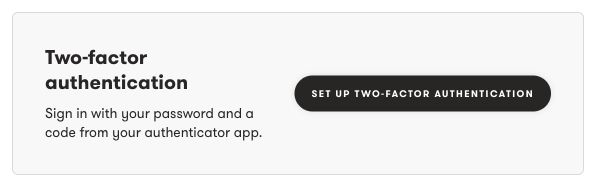
Select Set up two-factor authentication.
-
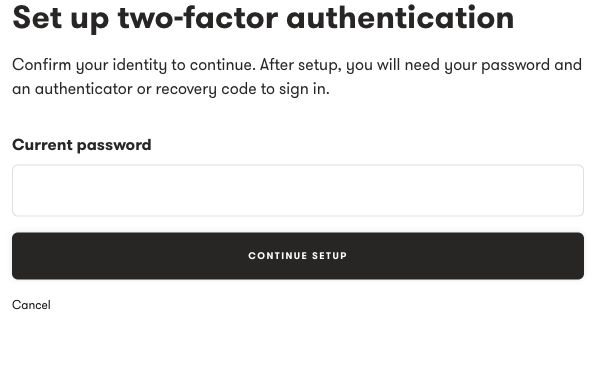
Enter your current account password, then select Continue setup.
-
Scan the QR code with your authenticator app. If you cannot scan it, enter the setup key in the app.
-
Enter the six-digit code from the app and select Confirm authenticator.
-
Use Copy codes or Download codes to save your recovery codes in a safe place.
-
Select I saved my codes.
Setup expires after ten minutes. If it expires, start again. Your authenticator is not active until you confirm its code. Other sessions for this account end when setup completes.
Keep the QR code, setup key, and recovery codes private. Do not send them to support. See Use and replace recovery codes.
Sign in with two-factor authentication
Section titled “Sign in with two-factor authentication”Enter your username or email and password. On the next screen, enter the code from your app or one unused recovery code.
A code that you just used cannot be used again. Wait for a new code in your app before you use it for another security check.
Change your authenticator
Section titled “Change your authenticator”-
Open Settings → Security & Signin in the correct account.
-
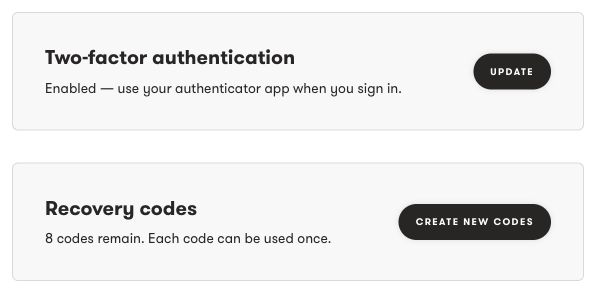
Select Update next to Two-factor authentication.
-
Enter your current password and a code from your current authenticator, or an unused recovery code.
-
Scan the new QR code with the authenticator you want to use.
-
Enter its code to confirm the change, then save the new recovery codes.
The change expires after five minutes. Your current authenticator stays active until you confirm the new one. After confirmation, the old authenticator and old recovery codes stop working. Other sessions for this account end.
Turn off two-factor authentication
Section titled “Turn off two-factor authentication”- Open Settings → Security & Signin.
- Select Turn off two-factor authentication.
- Enter your current password and an authenticator or unused recovery code.
- Confirm that you want to turn it off.
Your password alone will allow sign-in. The authenticator and recovery codes stop working, and other sessions for this account end.
If you cannot provide a code, see Fix two-factor sign-in problems. Resetting your password does not remove two-factor authentication.
Need help?
Section titled “Need help?”Use the Exposure contact form.