
Use and replace recovery codes
Recovery codes let you sign in when you cannot use your authenticator app. Each code works once and protects one Exposure account.
Save your codes
Section titled “Save your codes”Exposure shows ten recovery codes after you set up two-factor authentication. Copy or download them and store them in a safe place, such as your password manager. Keep a copy you can reach if you lose your phone.
The codes are shown only when they are created. You cannot open the same set again later. Do not send recovery codes to anyone, including support.
Use a recovery code
Section titled “Use a recovery code”- Sign in with your username or email and password.
- Paste one unused recovery code into Authenticator or recovery code.
- Select Verify and sign in.
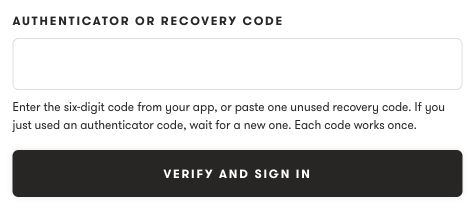
Mark that code as used in your saved copy. You can also use an unused recovery code when a security change asks for an authenticator code. You must still enter your current password when asked.
Create a new set
Section titled “Create a new set”-
Open Settings → Security & Signin for the correct account.
-
Under Recovery codes, check how many codes remain.
-
Select Create new codes.
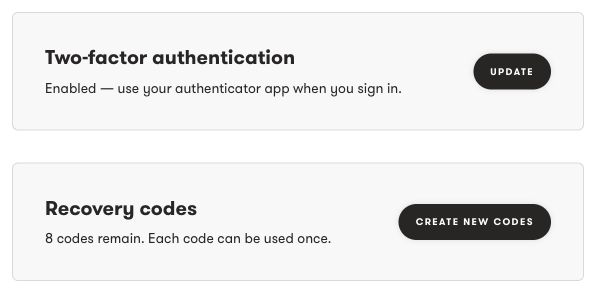
-
Enter your current password and an authenticator or unused recovery code.
-
Select Replace recovery codes.
-
Use Copy codes or Download codes to save the new set, then select I saved my codes.
The new set replaces all old recovery codes, including unused ones. Other sessions for this account end. Your authenticator remains active.
Create a new set before you run out of codes. If you have no codes left and cannot use your authenticator, see Fix two-factor sign-in problems.
Need help?
Section titled “Need help?”Use the Exposure contact form.