
Change or reset your password
You can add or change your password while signed in, or request an email link to reset it. These actions keep your Google and Apple connections and do not remove two-factor authentication.
Add a password with Google or Apple
Section titled “Add a password with Google or Apple”If you signed up with Google or Apple and have no Exposure password:
- Open Settings → Security & Signin in the correct account.
- Under Add a password, select Verify with Google or Verify with Apple. Use the connected account for that button.
- When you return, enter a new password with at least eight characters.
- If two-factor authentication is enabled, enter an authenticator code or an unused recovery code.
- Select Set password.
Save within five minutes of verification. If verification expires or the change cannot be saved, verify with the connected account again before retrying. Other sessions for this account end. You can then sign in with Google, Apple, or your new password, while each method remains connected.
See Manage your sign-in methods to connect or disconnect Google and Apple.
Change your password while signed in
Section titled “Change your password while signed in”- Select the correct account, then open Settings → Security & Signin.
- Enter your current password.
- If two-factor authentication is enabled, enter an authenticator code or an unused recovery code.
- Enter a new password with at least eight characters.
- Select Save new password.
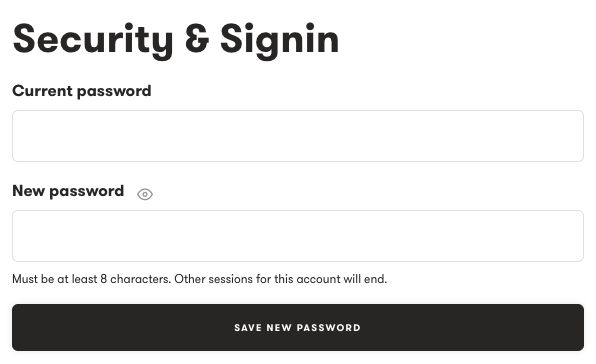
The authentication-code field also appears when two-factor authentication is enabled.
Other sessions for this account end after the change. If you just used an authenticator code to sign in, wait for a new one before you save.
Reset a forgotten password
Section titled “Reset a forgotten password”- Open Forgot password.
- Request a reset link for your account.
- Open the email sent to your account email address.
- Follow the link and set a new password.
A password-reset link expires after 30 minutes and can be used once. Requesting another link invalidates the previous link. Use the most recent email.
After resetting your password, you must still complete the authenticator or recovery-code check if two-factor authentication is enabled. Other sessions for this account end.
If you used Hide My Email at signup, the reset email goes to the private relay address unless you have changed your Exposure email. You must still be able to receive messages forwarded from that address.
If you stopped using Apple with Exposure, you can usually authorize the same Apple account again. This does not remove the two-factor check.
Cannot complete the reset?
Section titled “Cannot complete the reset?”If the link has expired, request a new one. Check your spam folder if the message does not arrive.
If you cannot access your account email, contact support. If you cannot complete the code check, see Fix two-factor sign-in problems.
Need help?
Section titled “Need help?”Use the Exposure contact form.