
Adding Disqus Comments to Your Stories
Disqus.com is a free comment and discussion platform that will allow you to enable conversations and reactions at the bottom of your stories, just like a traditional blog.
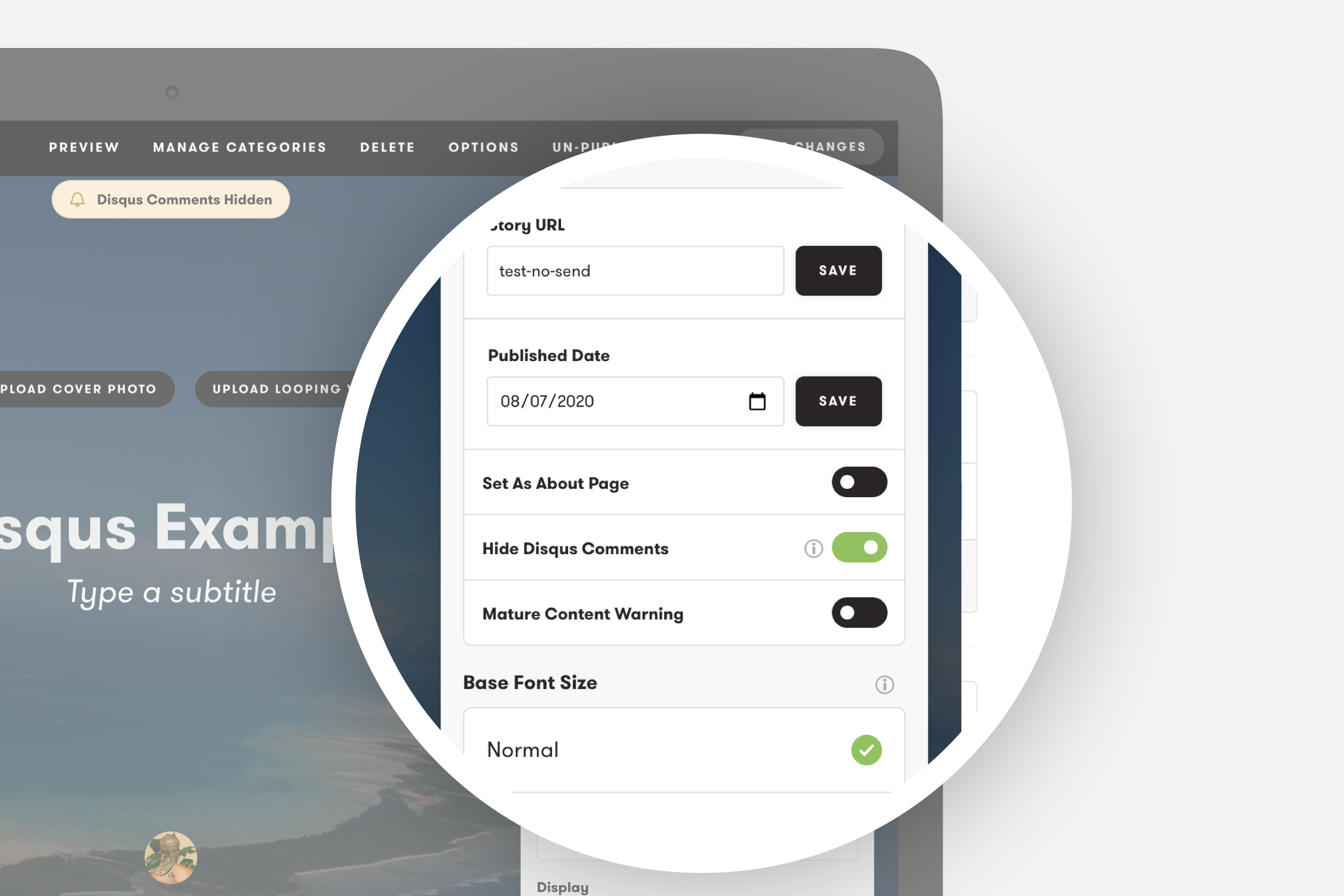
You can hide or show comments per story for extra control.
Notes
-
If you use a custom domain then all comments by you, the author must be made while viewing on the custom domain. Not your Exposure URL.
-
We HIGHLY suggest disabling “Tracking” and “Affiliate Links” in your Disqus Advance settings.
Step One
Section titled “Step One”First, we will need to add your Exposure site to Disqus. Create an account at Disqus.com and follow the steps linked below. Give it the same name as your Exposure site.
Step Two
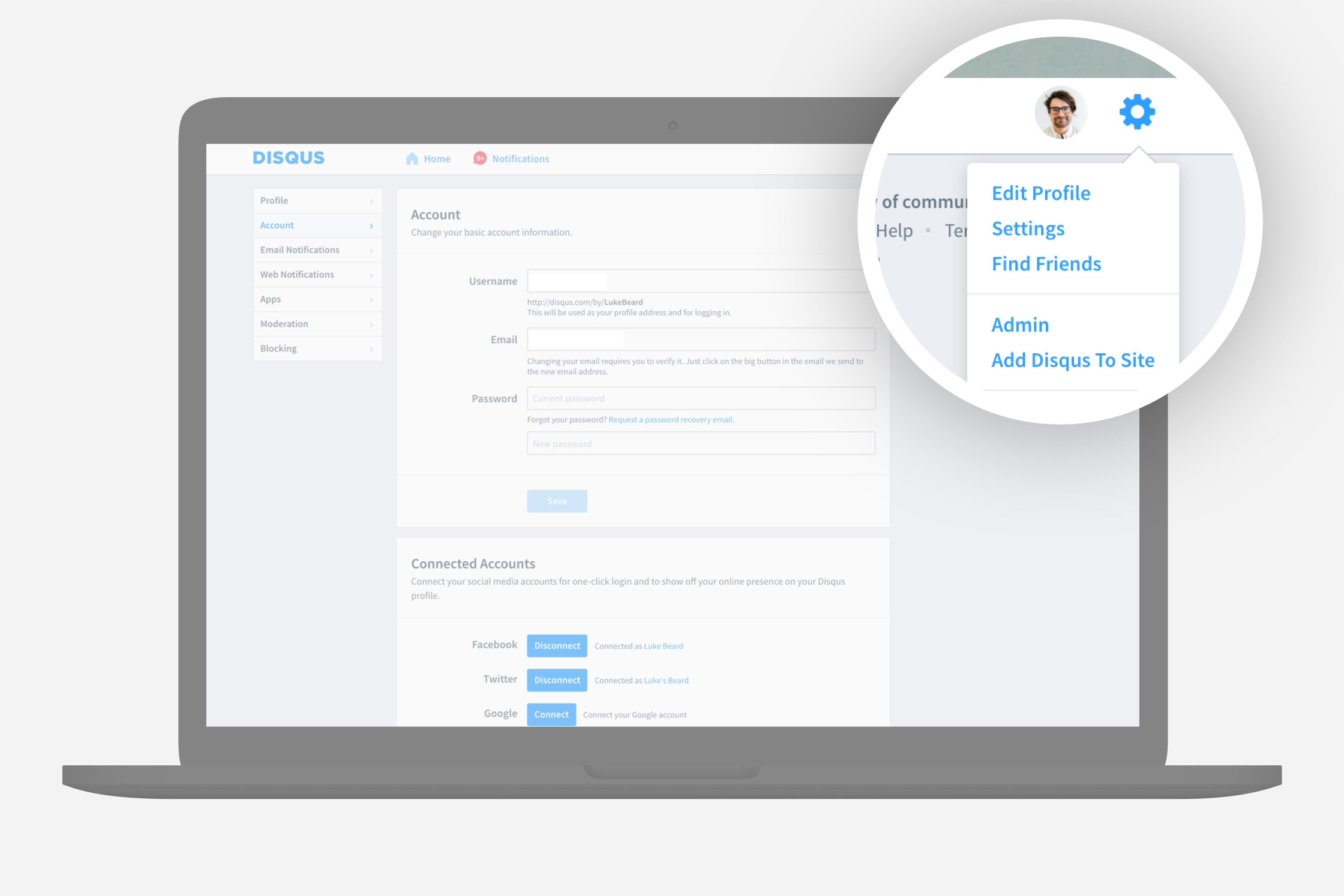
Section titled “Step Two”From your Disqus account page, click the cog icon in the top right and select “Admin”
Step Three
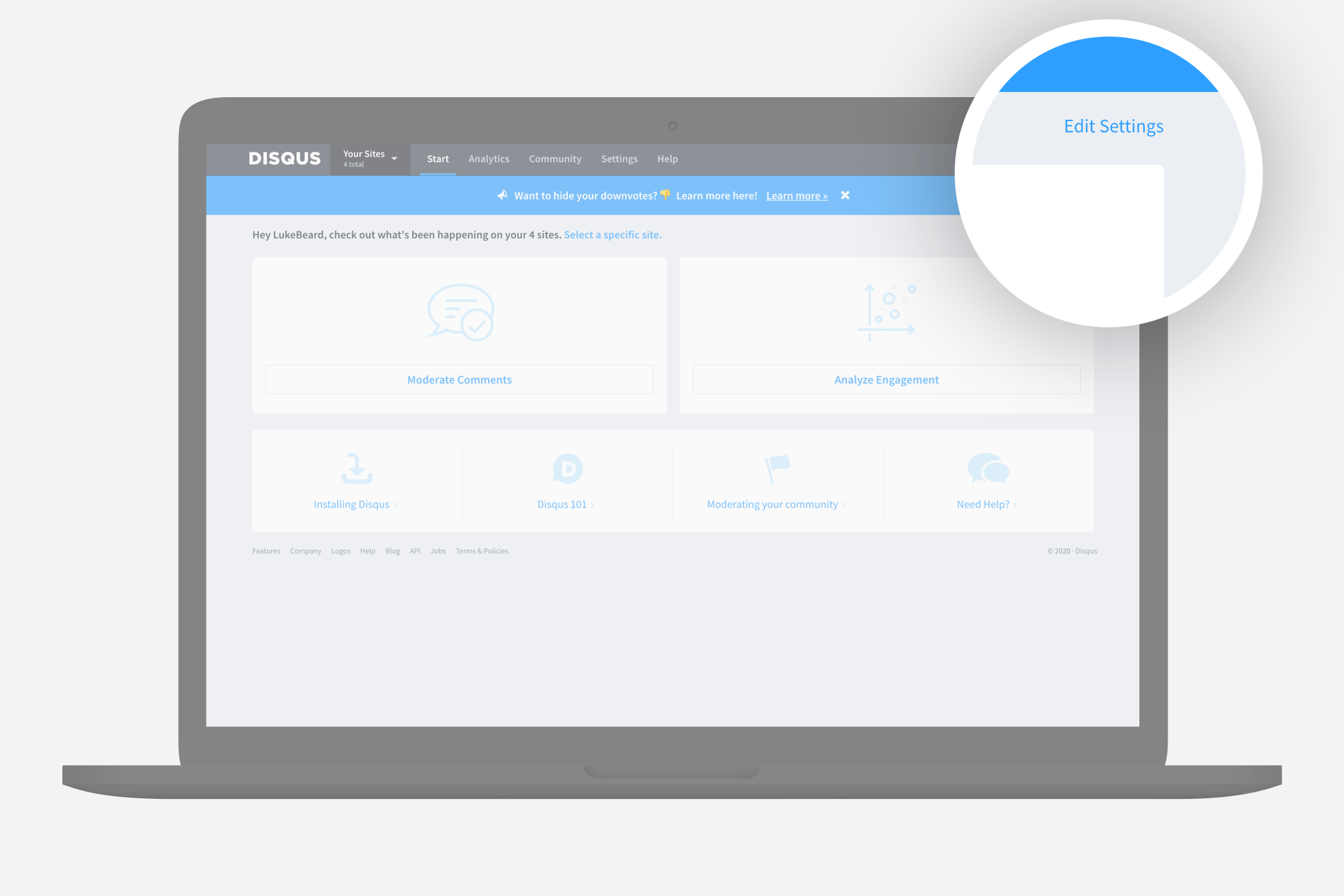
Section titled “Step Three”Click “Edit Settings” from the Admin view.
Step Four
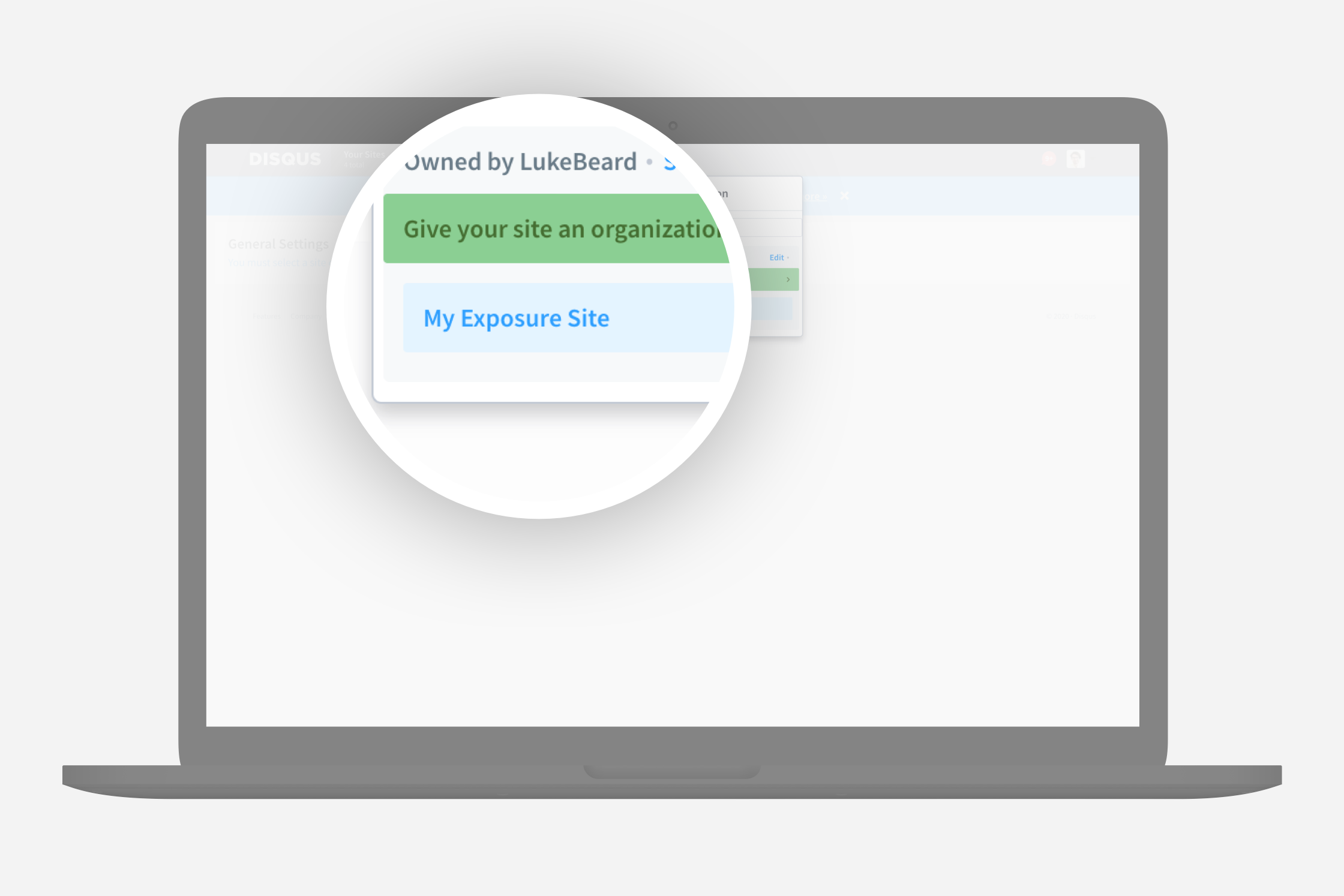
Section titled “Step Four”Select your Exposure site from the sites list.
Step Five
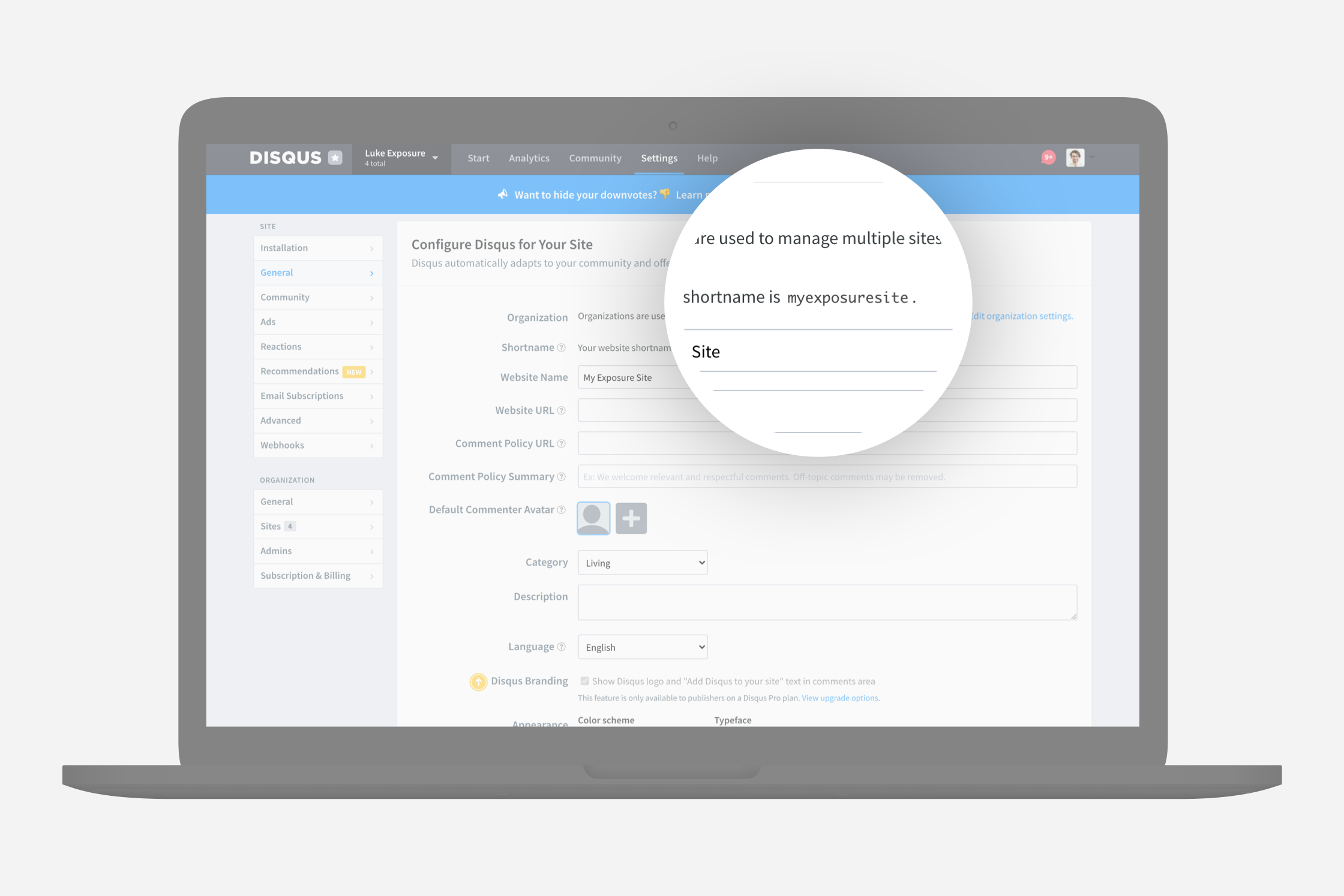
Section titled “Step Five”Copy the “Shortname” for your site that’s in the Configure section. We will need this for your Exposure settings.
Step Six
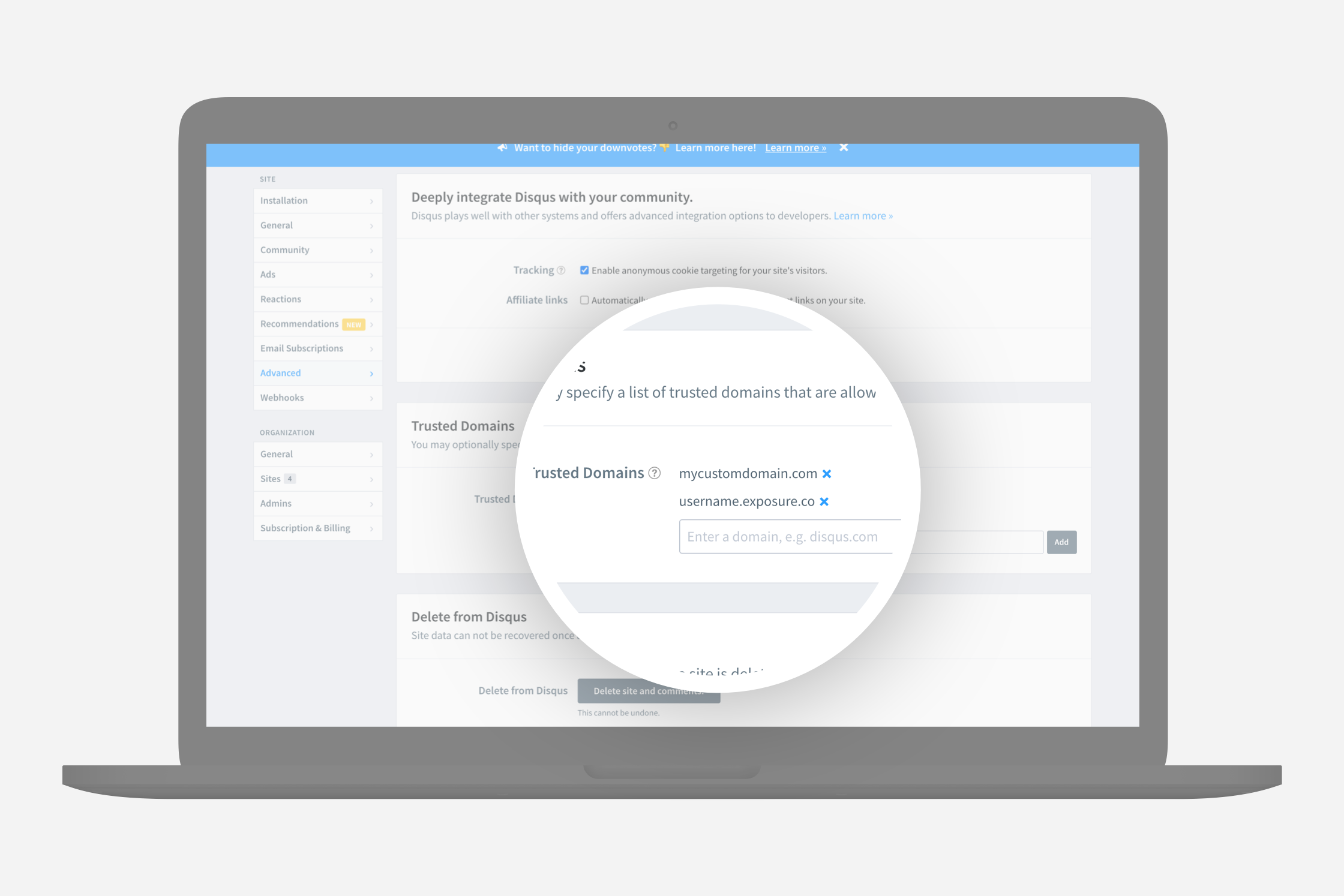
Section titled “Step Six”Select “Advanced” from the menu on the left and add your Exposure URL and any custom domain you want to use. For example: username.exposure.co and stories.mydomain.com.
Step Eight
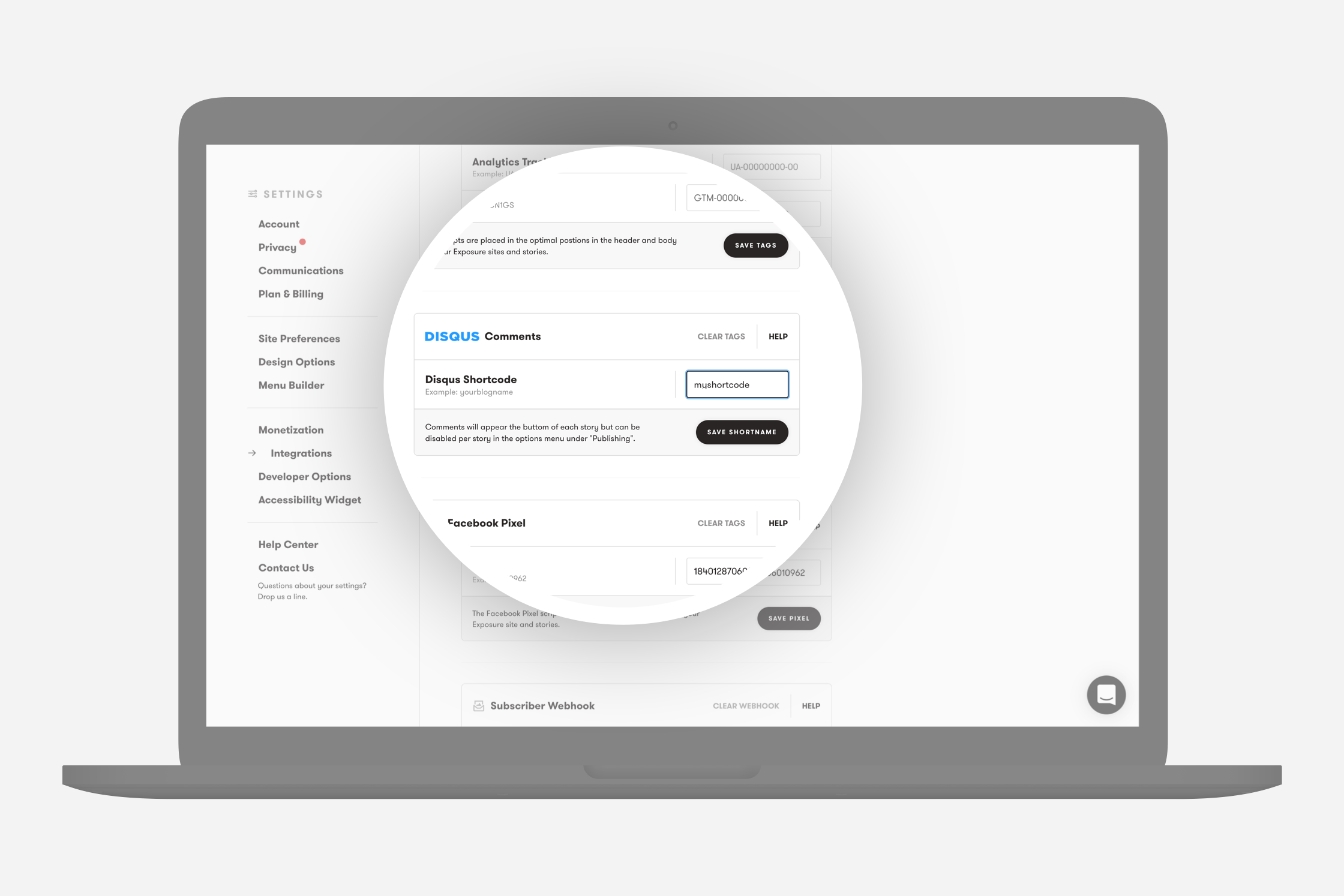
Section titled “Step Eight”Head to your Exposure Integrations settings page and add your copied Shortname to the Disqus Comments section. Once you have saved the shortname, you are done! Comments will now appear at the bottom of each of your stories.
Hiding Comments Per Story
Section titled “Hiding Comments Per Story”If you would like to hide Disqus comments for a specific story then you can do so from the “Options” menu in your story.
Need help?
Section titled “Need help?”Use the Exposure contact form.