
Sign in to your Exposure account
You can sign in with Google, Apple, or with your Exposure username or email and password. If two-factor authentication is enabled, you must also enter an authenticator code or an unused recovery code.
Sign in with Google
Section titled “Sign in with Google”- Open Sign in.
- Select Continue with Google.
- Choose the Google account you want to use.
- If Exposure asks for an authentication code, enter a code from your authenticator app or one unused recovery code. Select Verify and sign in.
An existing Google connection opens the Exposure account it belongs to. Your Google email can be different from your Exposure account email.
When your email matches an existing account
Section titled “When your email matches an existing account”Exposure can connect Google automatically when all of these conditions apply:
- Your Google email matches the email on a confirmed Exposure account. Capital letters do not affect the match.
- Google verifies the address as a Gmail or Google Workspace email.
- The Exposure account does not already have a different Google account connected.
If the account uses two-factor authentication, the connection is saved only after you pass the code check. Your existing password still works. Other sessions for the account end, and Exposure sends a security email about the new connection.
If the email is not confirmed, or your Google account uses an address that Google does not host, sign in with your Exposure password first. Then connect Google in settings. Exposure does not replace an existing Google connection just because an email matches.
If you cannot remember your password, request a password reset.
Sign up with Google
Section titled “Sign up with Google”- Open Join Exposure.
- Select Sign up with Google and choose your Google account.
- Complete your site details and accept the terms.
- Complete card verification if prompted.
Exposure uses the email verified by Google. You do not need to create an Exposure password during Google signup. You can add one later.
If Google is already connected, the signup button signs you in to that account. A matching email follows the same connection rules above, without creating a second account.
Connect Google in settings
Section titled “Connect Google in settings”These controls use your current signed-in session. You do not need to enter your password or authentication code again.
- Sign in and select the Exposure account you want to update.
- Open Settings → Security & Signin.
- Under Google, select Connect Google and choose your Google account.
- When you return, check the connected Google email shown in settings.
You can connect one Google account to one Exposure account. The Google email can differ from your Exposure email. Connecting Google does not change your Exposure email or remove your password. Other sessions for this account end, and Exposure sends a security email.
Disconnect Google
Section titled “Disconnect Google”Keep a password for your Exposure account before you disconnect Google. If you signed up without one, add a password first.
- Open Settings → Security & Signin in the correct account.
- Under Google, select Disconnect Google.
Use your password to sign in after disconnecting. Other sessions for this account end, and Exposure sends a security email. Two-factor authentication stays enabled if you already use it.
Sign in with Apple
Section titled “Sign in with Apple”- Open Sign in.
- Select Sign in with Apple and use the Apple account connected to Exposure.
- If two-factor authentication is enabled, enter an authenticator code or an unused recovery code. Select Verify and sign in.
An existing Apple connection opens the Exposure account it belongs to. Your Apple email can differ from your Exposure account email.
Apple does not connect automatically to an existing Exposure account when the emails match. Sign in to that Exposure account first, then connect Apple in settings.
Sign up with Apple
Section titled “Sign up with Apple”- Open Join Exposure.
- Select Sign up with Apple and complete Apple’s sign-in steps.
- Choose whether to share your email or use Hide My Email, if Apple offers that choice.
- Complete your name and site details, then accept the terms.
- Complete card verification if prompted.
You do not need to create an Exposure password during Apple signup. You can add one later.
If Apple is already connected, the signup button signs you in to that account. If the email already belongs to an Exposure account, sign in to that account and connect Apple in settings.
Hide My Email
Section titled “Hide My Email”With Hide My Email, Apple gives Exposure a private relay address instead of your personal email. Exposure uses that relay address as the email for the new account. You can see it in Settings → Account and in the Apple connection under Security & Signin.
Exposure cannot use the relay address to find an existing account with your personal email. To use an existing Exposure account, sign in to it first and connect Apple in settings. This does not change your Exposure account email.
Keep email forwarding enabled for Exposure in your Apple account if you use the relay address for account messages. If you stop receiving those messages, check Apple’s forwarding settings or change your Exposure email to an address you can access.
If you stopped using Apple with Exposure
Section titled “If you stopped using Apple with Exposure”Stopping Apple access does not delete your Exposure account. After Apple notifies Exposure, your existing sessions end.
To return, select Sign in with Apple and authorize Exposure again with the same Apple account. Exposure keeps the identity link so you can return to the same account. Complete the authenticator or recovery-code check if two-factor authentication is enabled.
If you deleted your Apple account or cannot use it, sign in with an existing Exposure password or a connected Google account. You can also request a password reset.
The reset email goes to your current Exposure account email. If this is an Apple private relay address, you must still be able to receive its forwarded messages. If you cannot receive them and have no other way to sign in, contact support. Support must verify account ownership; recovery is not guaranteed.
Connect Apple in settings
Section titled “Connect Apple in settings”- Sign in and select the Exposure account you want to update.
- Open Settings → Security & Signin.
- Under Apple, select Connect Apple and complete Apple’s sign-in steps.
- When you return, check the connected Apple email shown in settings.
You can connect one Apple account to one Exposure account. You can keep Google connected too. Connecting Apple does not change your Exposure email or remove your password. Other sessions for this account end, and Exposure sends a security email.
Disconnect Apple
Section titled “Disconnect Apple”You must have an Exposure password before you disconnect Apple, even if Google is also connected. If you have no password, add one first.
- Open Settings → Security & Signin in the correct account.
- Under Apple, select Disconnect Apple.
You can then sign in with your password or a Google account that remains connected. Other sessions for this account end. Exposure sends a security email. Two-factor authentication stays enabled if you already use it.
Sign in with a password
Section titled “Sign in with a password”- Open Sign in.
- Enter your username or email address and password.
- Select Sign in.
- If two-factor authentication is enabled, enter a code from your authenticator app or one unused recovery code.
- Select Verify and sign in.
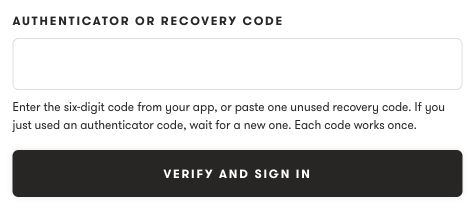
If you just used an authenticator code, wait for the next code before using it for another check.
Need help signing in?
Section titled “Need help signing in?”If an Apple sign-in attempt expires, return to Exposure and start again. Complete each attempt within five minutes.
- Change or reset your password.
- Use a recovery code if your authenticator is unavailable.
- Fix two-factor sign-in problems for rejected codes or expired attempts. Google and Apple sign-in do not bypass this check.
- Facebook sign-in is no longer available. Use your password, request a password reset, or use a Google or Apple account already connected to Exposure.
Protect your account
Section titled “Protect your account”Set up two-factor authentication in Settings → Security & Signin.
If you use more than one Exposure account, see Manage multiple Exposure accounts.
Need help?
Section titled “Need help?”Use the Exposure contact form.