
Add Alt Text Descriptions to Story Photos
What alt text is
Section titled “What alt text is”Alt text is a short description of a photo. It is also called alt tags, alt attributes, or image descriptions. Visitors do not see it on your story, but:
-
Screen readers read it aloud to people who cannot see the photo.
-
Search engines use it to understand your photos.
-
Browsers show it when a photo does not load.
If a photo has no alt text, Exposure uses the photo caption.
Write alt text yourself
Section titled “Write alt text yourself”-
Open your story in the editor.
-
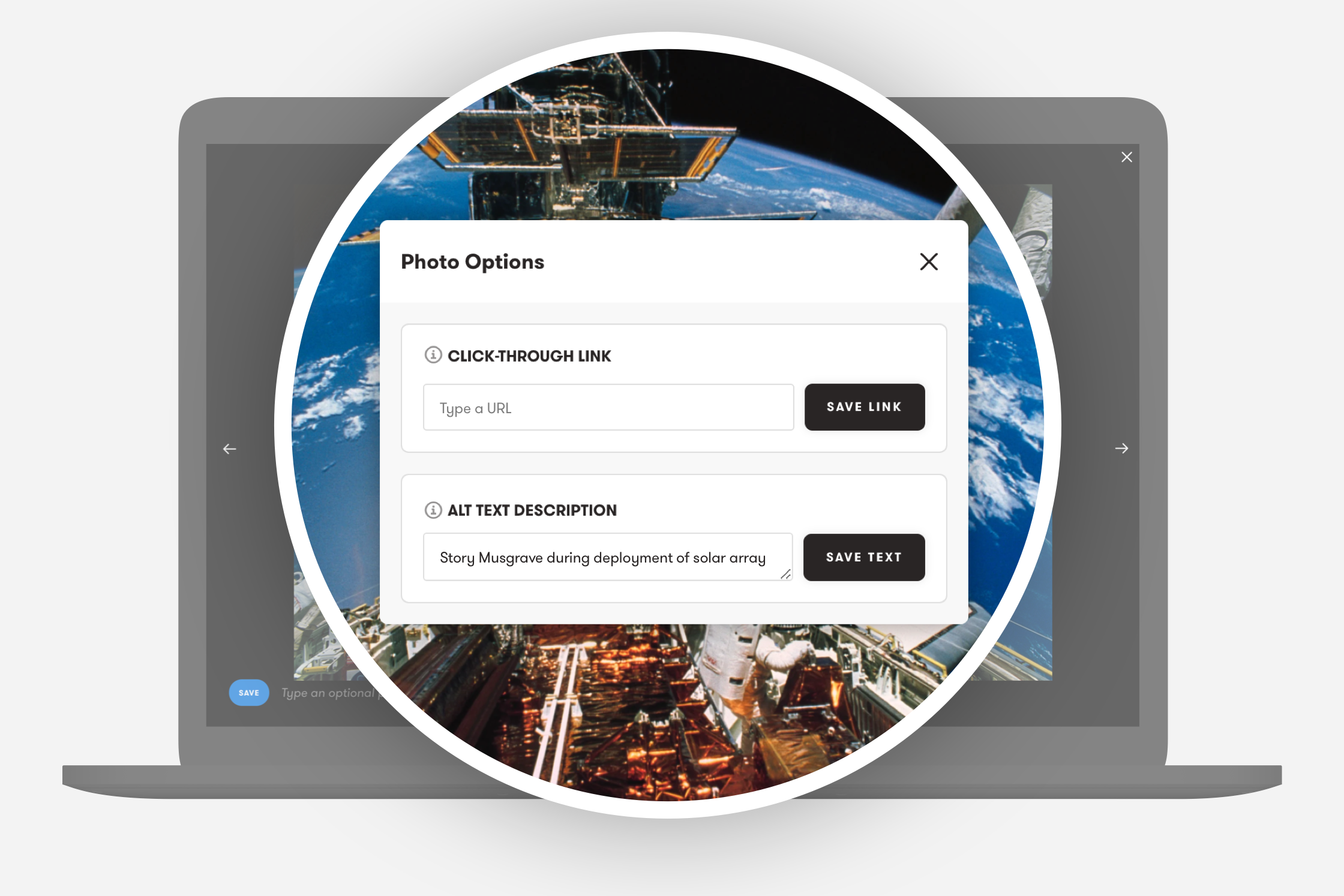
Move the pointer over a photo and select the link icon. The photo opens in the large view with Photo Options.
-
In Alt Text Description, type a description of the photo.
-
Select Save Text.
Text that you write or edit is yours. AI never changes or replaces it.
Tips for good alt text
Section titled “Tips for good alt text”-
Keep it short. One sentence is usually enough.
-
Be specific. Tell what is in the photo and what happens.
-
Do not start with “Image of” or “Photo of”. Screen readers already say that it is an image.
-
Include the details that matter to the story, for example the place, an action, or text on a sign.
Examples:
-
“Golden retriever catches a frisbee on a sunny beach”
-
“Weathered hands hold a ceramic coffee cup”
-
“Aerial view of a river through autumn mountains”
Alt text from your photo files
Section titled “Alt text from your photo files”If you add alt text to your photos in your editing app, Exposure can import it when you upload. Exposure reads the IPTC Alt Text (Accessibility) field in JPEG files.
This works when Settings → Preferences → Import Captions and Alt Text from Photo Metadata is on. It is on by default. AI does not replace alt text that comes from your photo files. See Import captions from photo metadata.
Automatic alt text with AI
Section titled “Automatic alt text with AI”On paid plans and during a free trial, Exposure can write alt text for your photos with AI. What AI writes depends on your plan:
| Plan | What AI writes |
|---|---|
| Business | A detailed description of each photo, and a caption for a looping cover video |
| Pro, Pro Plus, and free trials | A short description of each photo, in one sentence |
| No paid plan (for example, after a trial ends) | No AI text. Upgrade to a paid plan to use it. |
What AI describes
Section titled “What AI describes”-
New photos. AI writes a description a short time after you upload a photo. You can continue to work on your story.
-
Older photos. AI does not change photos that you uploaded before. If you would like your account backfilled, please let us know!
AI does not write alt text for a photo that:
-
Already has alt text, from you or from your photo file.
-
Has alt text that you cleared and saved empty.
-
Is in a sensitive story, on Pro and Pro Plus.
AI also does not write new text while an account is suspended or a payment is overdue.
Turn automatic alt text on or off
Section titled “Turn automatic alt text on or off”Automatic alt text is on by default.
-
Go to Settings → AI Powers.
-
Use the toggle in Automatic alt text. On Business, the setting is Automatic alt text and cover captions.
When you turn it off, AI stops writing new text. Alt text that AI wrote before stays. To remove that text too, see Delete all AI alt text.
Check and edit AI alt text
Section titled “Check and edit AI alt text”When AI wrote the alt text for a photo, the story editor tells you. Open the photo in the large view. Below Alt Text Description, you see:
-
On Pro and Pro Plus: AI wrote this short description. Read it and edit it if it is not correct.
-
On Business: AI wrote this description. Read it and edit it if it is not correct.
AI can make mistakes, especially with small text in a photo. Read the AI text for your most important photos.
-
To correct the text, edit it and select Save Text. The text is then yours, and AI does not change it again.
-
To remove the text from one photo, clear the field and select Save Text. The editor shows AI will not add a description to this photo. The photo caption is then used as the alt text.
Delete all AI alt text
Section titled “Delete all AI alt text”You can delete the alt text that AI wrote on all your photos at the same time. Alt text that you wrote or edited stays.
-
Go to Settings → AI Powers.
-
In Delete AI alt text, select Delete. This section shows only when AI wrote alt text on some of your photos.
-
Read the message. It tells you how many photos have AI alt text.
-
To keep automatic alt text on for new photos, turn off Also turn off automatic alt text. It is on by default.
-
Select Delete AI alt text.
This cannot be undone. AI does not write alt text for these photos again. On a large site, the deletion can take a few minutes. Reload the page to see when it is done.
Privacy and your photos
Section titled “Privacy and your photos”To write alt text and captions, Exposure sends your photo or cover video to an AI model through OpenRouter. Exposure also sends text from the story, such as its title and the photo caption, so the AI text fits your story.
-
No data retention. Requests go only to AI providers that do not keep them: Google Cloud Vertex AI, and Amazon Bedrock for short descriptions.
-
No AI training. These providers may not use your photos, videos, or text to train AI models.
-
Your choice. You can turn automatic alt text off at any time, and delete the AI text from your photos.
For more information, see our Privacy Policy.
Frequently asked questions
Section titled “Frequently asked questions”Does alt text show on my published story? No. Visitors do not see it. Screen readers and search engines use it.
What happens if a photo has no alt text? Exposure uses the photo caption. If the photo has no caption, Exposure uses a general description, for example “A photo in this story”.
Can I get detailed descriptions on Pro or Pro Plus? Detailed descriptions and cover video captions are part of the Business plan.
Does AI change alt text that I wrote? No. AI writes only for photos that have no alt text, and never for a photo where you saved your own text or cleared the text.
Does AI write captions for my photos? No. AI writes only alt text. Your photo captions do not change.
Need help?
Section titled “Need help?”Use the Exposure contact form.