
Attach PDFs Inside Your Stories
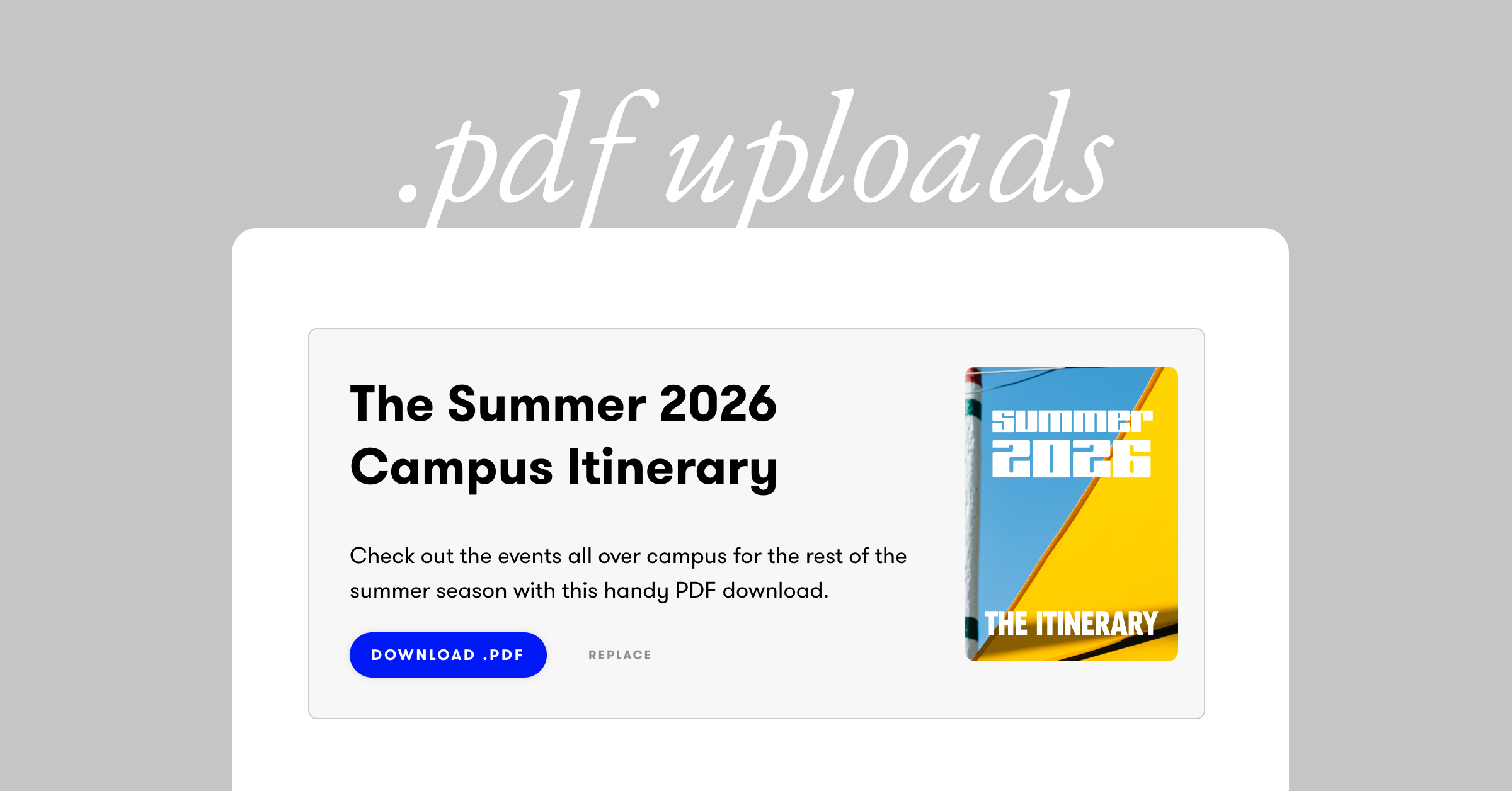
You can now attach a PDF directly to any story — no more parking files on a third-party host or burying download links in body text. Perfect for menus, lookbooks, zines, resumes, conference programs, and print-ready photo books.
How it works
Click the new PDF button at the end of the power bar, drop in a .PDF up to 50 MB, and Exposure does the rest. Visitors see a clean callout card with a thumbnail of the first page, an optional title and description, and a single Download .PDF button. The button picks up your Brand Settings colors automatically, so it sits visually inside your design system rather than fighting it.
Swap files in place
Need to publish version 2? In the editor, click Replace next to the Download button, pick the new file, and the thumbnail and download link update without touching the title, description, or the group’s position in your story.
Tracking is built in
If you have Story Link Click Tracking enabled, PDF downloads are tracked alongside your other story links — you’ll see them break out by URL, link text, and device in your stats dashboard.
Plan availability
PDF attachments are available on the Business plan. If you downgrade later, your PDFs are hidden (not deleted) and reappear the moment you re-upgrade.
As always, questions to hello@exposure.co.