
Protect your account with two-factor authentication
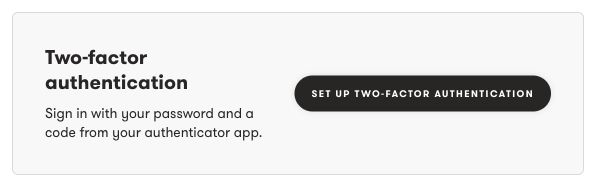
You can now choose to protect your Exposure account with two-factor authentication. After you enter your password, use a six-digit code from your authenticator app to finish signing in.
Open Settings → Security & Signin and select Set up two-factor authentication to get started. Scan the QR code with your authenticator app, confirm a code, and save your recovery codes.
You get ten recovery codes during setup. Each code works once, so you can still sign in when you cannot use your authenticator app. Keep them somewhere safe that you can reach if you lose your phone.
The new Security & Signin view also brings your password and authenticator controls together. You can change your password, update your authenticator, and create a new set of recovery codes there. Your email address stays in Settings → Account.
Use our guides to set up two-factor authentication, save and use recovery codes, or get help with a sign-in code.